How to Download Facebook Video on Android
Do you want to know how to download facebook video on android? You can do it in less than a minute, with no app and no login. You do not need an APK, you do not need to pay, and you do not need to learn anything new.
This guide shows you how to download facebook video on android step by step, in Chrome, on any Android phone. It works on Samsung, Xiaomi, Oppo, Vivo, Realme, OnePlus, Google Pixel and other Android phones. You can save a normal video, a Reel, a Watch video or a Live replay. You can save it as MP4 in HD, or as MP3 if you only need the sound.
FVidSaver is a free facebook video downloader for android that works in your browser. There is nothing to install. Open Chrome, paste the Facebook video link, and download the file. That is all.
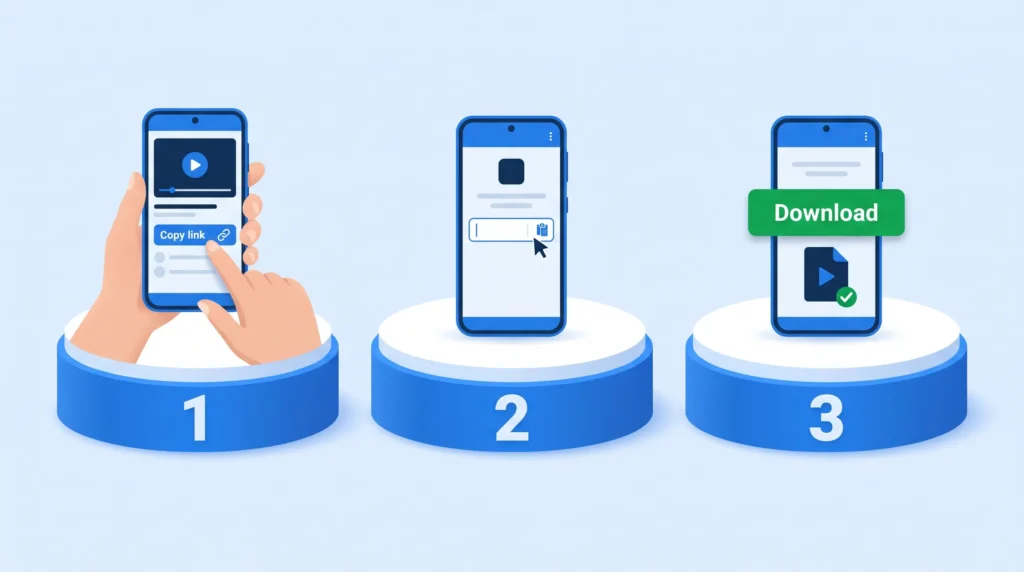
How to Download Facebook Video on Android in 3 Steps
You can download facebook video on android in 3 simple steps. No software, no extension, no account.
Step 1: Copy the Facebook Video Link
Open the Facebook app on your Android phone. Find the video you want to save. Tap Share below the video, then tap Copy Link. The link is now copied. Make sure you copy the full link. This works for a normal video, a Reel, a Watch video or a Live replay.
Step 2: Paste the Link in FVidSaver
Open Chrome on your Android phone and go to FVidSaver. Paste the video link into the box at the top of the home page. You do not need to log in to Facebook or to FVidSaver. You do not need to give your email or password.
Step 3: Choose a Quality and Download
Click Download, choose MP4 in HD, 1080p or SD, or MP3 for audio only, and save the file. The file is saved in your Downloads folder. Open it with your normal video player. That is how to download facebook video on android, in less than a minute.
Where Is My Downloaded Video on Android?
After you learn how to download facebook video on android, the file is in your Downloads folder.
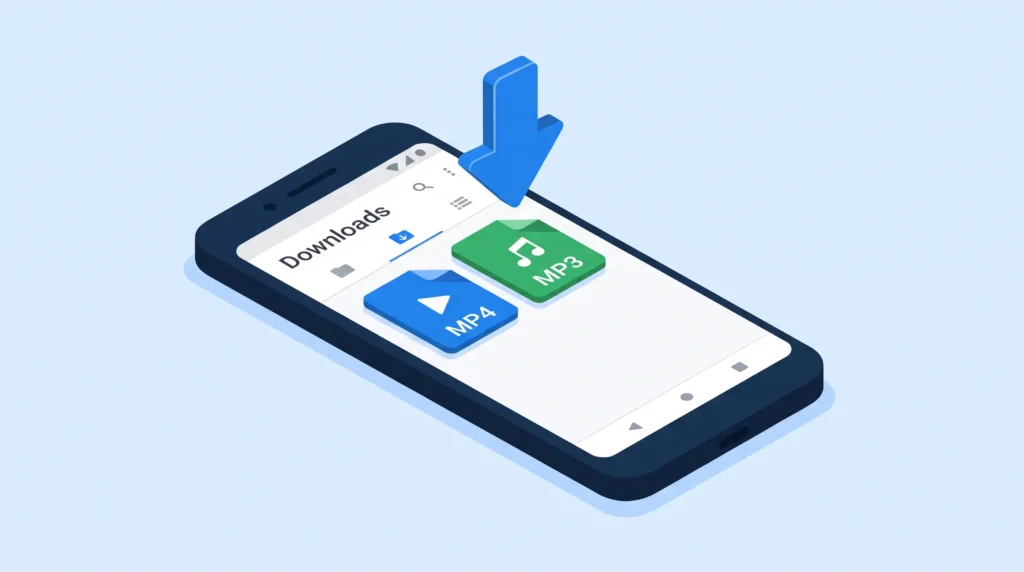
Open the Files app or your file manager on your Android phone. Tap Downloads. You will see the MP4 or MP3 file there. Tap it to play it.
If you cannot find it, open Chrome, tap the three dots at the top right, then tap Downloads. The file will be listed there, with the video title or the date.
On Samsung phones, open My Files, then tap Downloads. On Xiaomi phones, open File Manager, then tap Downloads. The folder name is the same on all Android phones: Downloads.
Download Facebook Video on Android Without an App
Many people search for the best facebook video downloader app for android, or for a download facebook video downloader app for android free. You do not need to download an app to save a Facebook video on Android.
An app takes space on your phone, asks for permissions, and shows ads. Some apps also ask you to log in with Facebook. That is not safe, and it is not needed.
This is how to download facebook video on android without app: open FVidSaver in Chrome, paste the link, and download the file. No APK is needed. No app is needed. Your phone stays clean and safe, and your Facebook password stays private. FVidSaver will never ask for your Facebook password.
The same is true for a facebook video downloader for android phone free. FVidSaver is free, and it works in your browser, so you do not need a separate free app. If a site asks you to download an APK to save a Facebook video, do not download it. Use the online tool instead.
Download Facebook Reels on Android
You can also download Facebook Reels on Android with the same steps. Once you know how to download facebook video on android, Reels are easy too.
Open the Reel in the Facebook app, tap Share, then tap Copy Link. Open FVidSaver in Chrome, paste the link, and download the Reel as MP4 in HD. Reels are short and vertical, so the file is small and fast to download.
For more detail about Reels, see our Facebook Reels Downloader page. That page is made for Reels only, and it uses the same free tool.
Download Facebook Watch Videos on Android
- Watch videos are longer than normal videos, so the file is bigger. The steps are the same as how to download facebook video on android for a normal video.
- Open the Watch video, tap Share, then tap Copy Link. Paste the link in FVidSaver, choose MP4 in HD or SD, and download. If the video is very long, the download may take a little longer. Do not close Chrome while it is downloading. Check your internet connection if it is slow.
- Choose SD if you want a small file and you have low storage on your phone. Choose HD or 1080p if you want the best quality and you have space.
MP4 or MP3 on Android – Which One Should You Choose?
- MP4 is a video file. It has both picture and sound. Choose MP4 if you want to watch the video again, save a Reel, or keep a Watch video on your phone. Most people on Android should choose MP4 in HD or 1080p.
- MP3 is only sound, with no picture. Choose MP3 if you only need the audio – music, a talk, a speech, or an interview. The file is small and fast to download. For MP3, use our Facebook to MP3 page.
For most videos, MP4 is the right choice. For music and talks, MP3 is the right choice.
MP4 or MP3 on Android – Which One Should You Facebook Video Downloader for Android – What to Look For
A good facebook video downloader for android should be free, fast, and safe. It should work in your browser, with no app and no login. It should give you a choice of quality – HD, 1080p, 720p or SD – and it should not add a watermark to your video.
FVidSaver is a facebook video downloader android tool that does all of that. It is free forever. No payment, no subscription, no download limit for public videos. It does not store your videos, your links, or your download history. All processing is temporary.
Do not use a downloader that asks for your Facebook password, or asks you to download an unknown APK. A safe downloader never asks for your password. If a site asks for it, close the site and do not send your password to anyone.
If the Download Does Not Work on Android
The link is wrong or incomplete
Check that you copied the full link. The link should start with facebook.com or fb.watch. If you copied only part of the link, copy it again from Share, then Copy Link, and paste it again.
The video is private
Only videos you are already allowed to view can be downloaded. If a video is private, or in a private group you are not a member of, it cannot be downloaded. FVidSaver cannot unlock private videos.
The video was removed or made private
If Facebook removed the video, or the owner made it private, the link will not work. Ask the owner for a new link, or check if the video is still public.
No HD quality is shown
Video quality depends on the original Facebook video. If the original video was uploaded in low quality, HD will not be available. Choose the best quality shown. FVidSaver does not make low quality video better.
The download is slow
A long Watch video or a Live replay is a big file, so it takes longer. Check your internet connection and wait for the download to finish. Do not close Chrome while it is downloading.
Chrome says the file may be harmful
Chrome sometimes shows a warning for any video file. If you downloaded the file from FVidSaver, it is the Facebook video file. Tap Keep or Download anyway to save it. If you are not sure, check the file name and size first.
Use It the Right Way
Only download videos you have the right to save – your own videos, or videos the creator gave you permission to save. Use them for personal offline viewing, learning or backup. Do not re-upload someone else’s video as your own, and do not remove a creator’s own watermark or credit.
Only videos you are already allowed to view can be downloaded. If a video is private and you do not have permission to view it, it cannot be downloaded. FVidSaver cannot unlock private videos.
FVidSaver does not store your videos, your links, or your download history. All processing is temporary. FVidSaver will never ask for your Facebook password. Do not send your password to anyone.
Frequently Asked Questions
If it still does not work, email us at toqfb1@gmail.com with the Facebook video link and what happened. See our Contact Us page. We try to reply within 1-2 working days.